
Adding Recalls via the Patient's Record
Generate recalls for a patient.
Before you begin
To generate recalls for a group of patients if you are unsure if any of them have a current recall, see Adding Recalls via the Patient Search Module.
To find patients with due recalls so you can complete the recalls and if required generate a new set of recalls for the same set of patients, see Adding Recalls via the Search Recalls Module.
Procedure
To generate recalls for a patient:
-
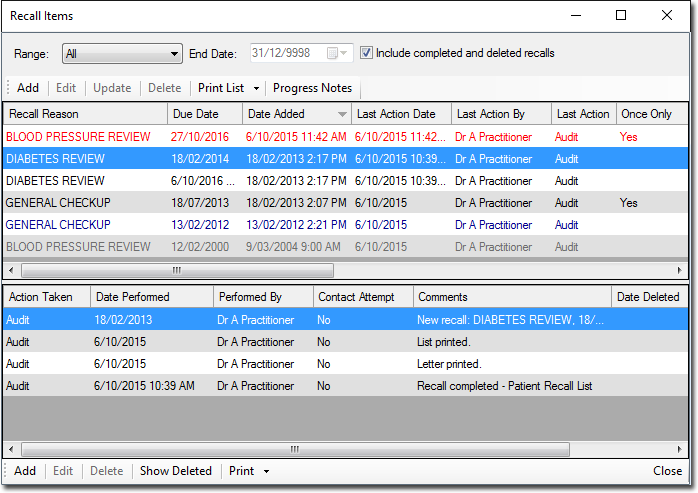
In the Recall Items window, click
Add.
-
In the Add Recall window, specify the criteria for the
Recall you wish to create:
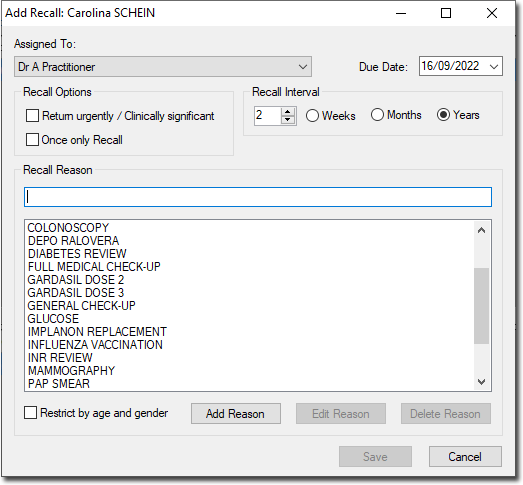
Tip:You can quickly jump to an entry in the list by typing the first few letters of it, then press TAB+ENTER to select the item. Alternatively you can press TAB to move to the list and then use your arrow keys to scroll through the list.- Indicate the Practitioner/User the Recall is being created on behalf of. The practitioner/user currently logged in is selected by default. For non-clinical users, this item is initially left blank.
- Indicate the Recall due date;
- For once-off Recalls, this is the date on which you wish the patient to return to the practice.
- For recurring recalls, this is the date on which you wish the first return visit to occur.
- Indicate whether the patient is to return urgently and/or there is clinical significance to the recall.
- Indicate whether this is a once-only Recall, or a recurring Recall. For recurring Recalls, you must also indicate the interval between Recall visits.
- Indicate the reason for the Recall. You can select a reason from the list provided, or you can add a new reason to the list. Tick Restrict by Age and Sex at Birth to show only reasons suitable for the age and/or sex at birth of the selected patient. If you select a reason from the list, its schedule settings are loaded for you automatically. You can modify these if you wish, and such modifications will not affect the reason definition, nor will they affect any Recalls already saved.