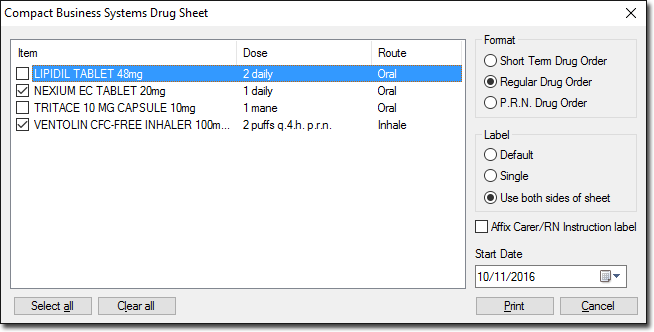
Compact Business Systems Drug Sheet

Print medication labels for attaching to medication charts.

About this task

In the patient's record, select a medication and print labels with that medication's details for attaching to medication charts. If you print with the default options, the printed sheet contains 18 sets of medication labels.

The fields included in a label are the medication name, medication strength, medication generic name, medication dose, medication route, medication frequency, start date, stop date, and prescriber signature.

Procedure

  1. In the patient's record, select Summaries > Compact Business Systems.

  2. In the Compact Business Systems Drug Sheet window, in the Item list, select the medication you want to print.
    • Click Select all to print all medications in the list.
    • Click Clear all to unselect all selected medications.
  3. In the Format field, select the medication's category. It can be Short Term, Regular, or PRN.
  4. In the Label field, select whether you want to print the default set of 18 labels, or a single label, or to print labels on both sides of the paper.
  5. Optionally, to include printed instructions about administering the medication, set Affix a Carer/RN Instruction label.
  6. In the Start Date field, enter or select the date when you want the drug sheet to start.
  7. Click Print.
  8. If you selected Single in the Label section, in the Single Label window, enter details of how you want the label to be printed on the paper you intend to use.
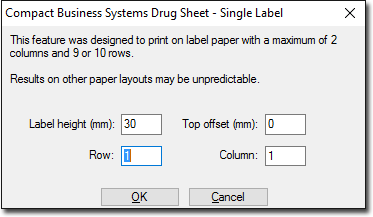
    • Label height (mm): The height of the area in which the label is to be printed.
    • Top offset (mm): The distance below the top of label area that printing should start.
    • Row: The row on the label where printing should begin.
    • Column: The column on the label where printing should begin.
  9. Click OK.

Results

The label or labels are printed.