Childhood Immunisations
Before you begin
Registered nurses can perform immunisations on behalf of a practitioner. The Provider Number of the practitioner is then used to transmit data to Australian Immunisation Register (AIR), and the AIR notification payment is forwarded to the practitioner (whom the nurse is performing the immunisation on behalf of).
Nurses can register as Ancillary Immunisation Providers for AIR purposes only (i.e. reporting vaccinations given to children), as in the case of a nurse who is performing immunisations in a remote location without a registered Medicare provider. The nurse needs to complete the 'Application to register as an immunisation provider' form and send it to their State or Territory Health Department for approval. The bank account details for the AIR notification payment are also completed on this form.
When the approved form is received by Medicare, a unique identification number (Ancillary Provider Number) is allocated to identify the ancillary provider and the bank account details are processed onto the AIR for future AIR payments. The ancillary provider number is only recognised for the purpose of sending immunisation data to the AIR and is not linked in any way to MBS item numbers.
Procedure
-
To add an immunisation record, either:
- Click the
 Add icon on the toolbar
 - Press the F3 key
- Right-click in the list of immunisations (even if the list is empty) and select New Item
- Click the
-
The National Immunisation Program Schedule window displays a
record of the patient's immunisation history.
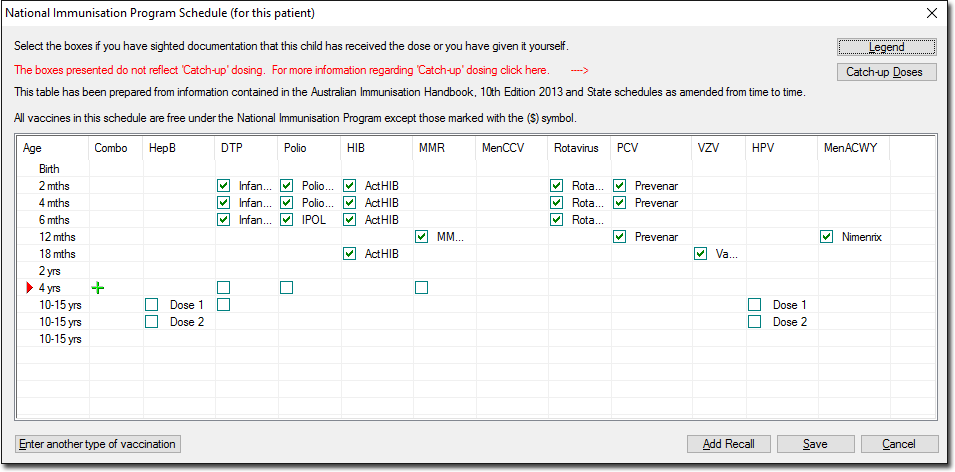
- A green arrow indicates that the patient's schedule is up-to-date for the
specified age range. A red arrow
 indicates their schedule it not up-to-date.
 - Past immunisations appear as plain text entries. Click to display further information about the vaccination.
- Immunisations recorded for the current visit, but not yet saved, are seleted and can be edited until the immunisation record is saved.
- Where vaccines have yet to be administered, as indicated by an empty check box or a green cross .
- A green arrow indicates that the patient's schedule is up-to-date for the
specified age range. A red arrow
-
To record a vaccination, click
 Add for a particular age-vaccine
combination
Add for a particular age-vaccine
combination
-
To record combination vaccines, in the Combo column, click
Add.
-
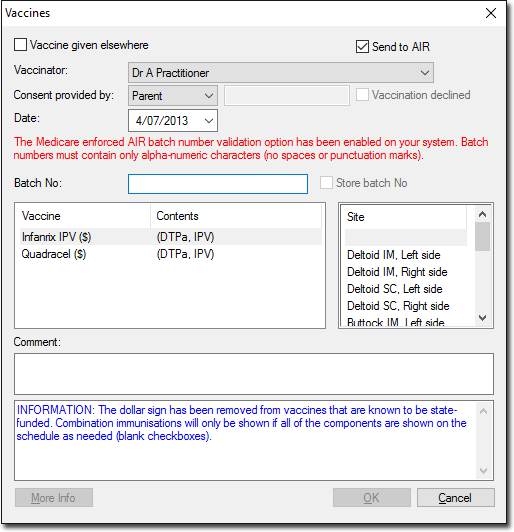
To record detailed information such as batch numbers for any vaccines you have
administered during the current visit, click Enter another type of
vacciantion. These batch numbers must be recorded before the data is
saved.