
Recording Immunisations
Record immunisations administered to a patient by you or by another provider elsewhere.
Before you begin
Before you administer an immunisation, you can check the vaccines administered to the patient that have been added to the AIR and the vaccines due. However, if you are using MedicalDirector Clinical in Mobility-mode (such as when you might take your laptop on a home visit), you will not be able to view patient immunisation data provided live by the Australian Immunisations Register (AIR).
- If you are linked to Pracsoft, also set Create Immunisations in Links Options.
- If you are linked to a third-party billing package, you must also:
- Set Send details of immunisations recorded in Advanced Link Options.
- Include the output path location for the vaccination data your billing package will read in Advanced Link Options.
Procedure
-
To add an immunisation record, either:
- Click
 on the toolbar
 - Press the F3 key
- Right-click in the list of immunisations (even if list is empty) and select Record Encounter
- Click
-
In the Vaccination Window, record details of the
immunisation.
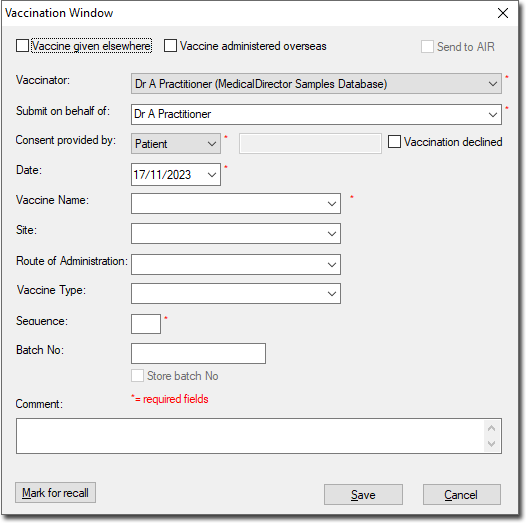
Tip:If the vaccine is historical and was not administered at your health service, set Vaccine given elsewhere if administered in Australia or Vaccine administered overseas.
Results
The immunisation record is saved and you are returned to the patient's record.
Details of the immunisation administered at your health service are uploaded to the AIR by default.
What to do next
If you recorded immunisations while in Mobility-mode, when you have reconnected to your Practice network and uploaded the patient's data back to your MedicalDirector server, upload any immunisation records to the AIR using the Outstanding Immunisations module.