
Management
Similar to comments, use management items to insert frequently used text into a progress note.
Before you begin
Each practitioner can store an unlimited number of Management items of up to 250 characters each, and share them with other practitioners on your network. Management items are similar to Comments, with the former also displaying a heading when added to Progress Notes.
Procedure
To insert or manage management items:
-
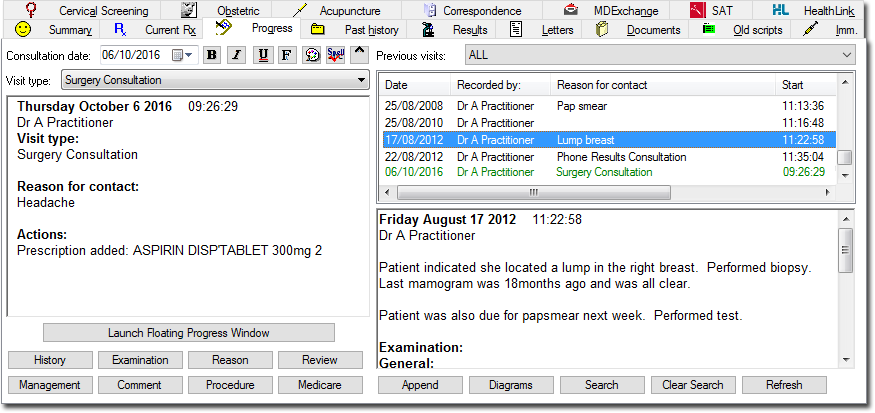
Select the Progress tab in the patient's clinical record.
-
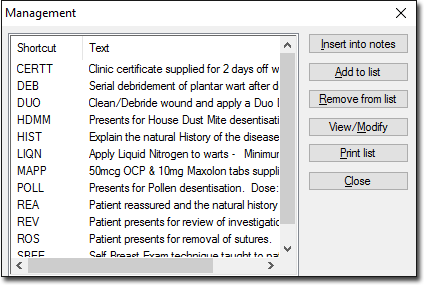
Click Management. The Management
window appears.
-
To add a management item:
- Click Add to list . The Add Management
Item window appears.
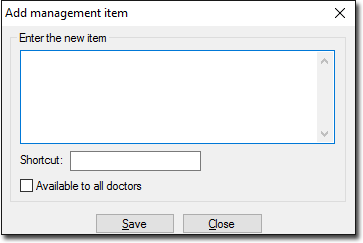
- Enter the comment text (maximum of 250 characters).
- In the Shortcut field, enter a unique shortcut key combination for the comment.
- To make this comment available to all practitioners on your network, set Available to all doctors.
- Click Save to confirm.
- Click Add to list . The Add Management
Item window appears.