
Stage 3: Merging Unwanted Recall Protocols
Merge custom recall protocols with supplied or other custom protocols.
Procedure
-
From the Show Clinical List for list, select
Recall List.
- The right-hand side of this window displays the total of all supplied and customised recall protocols.
- The left-hand side of this window displays the total of all supplied and
customised protocols that have actually been used in your database.
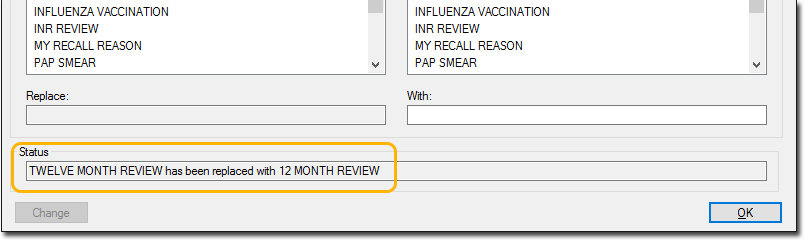
The example above shows a customised recall reason 'TWELVE MONTH REVIEW' on the left, and the recall reason we wish to merge it into on the right. Although you may add numerous customised recall reasons to Clinical, they will not appear in this left-hand list until you actually associate them with a patient's record in Medical Director.
Results
A search of your database is conducted, and every instance of your customised protocol is replaced with the supplied protocol.
Confirmation and details of the successful replacement are displayed in the Status field.