
Import Email as a Letter
Import an email into the Letters tab.
Procedure
-
From within Letter Writer, select .
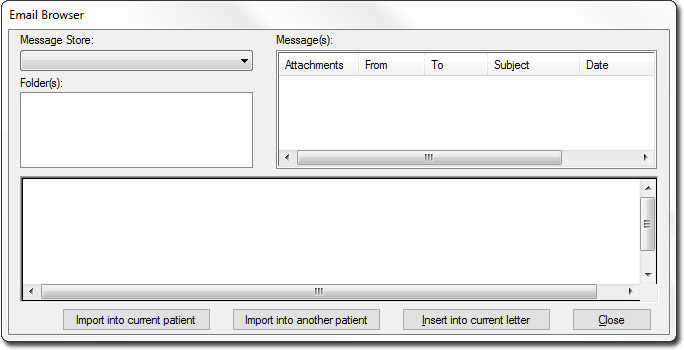
- In the Email Browser window, select the required Mailbox from the Message Store drop-down menu. These mailboxes are the same as those available to you in your third-party e-mail software.
- Select the Inbox in which the message resides.
- In the Messages list, select the email.
-
Either:
- Click Import into current patient. The email is imported into the patient's Letters tab.
- Click Import into another patient. Select the patient record in which you want to save the email. Click OK.
- Click Insert into current letter to add the email to the letter displayed in letter writer, at the cursor position. Edit the text of the email if necessary.
- Click Close.