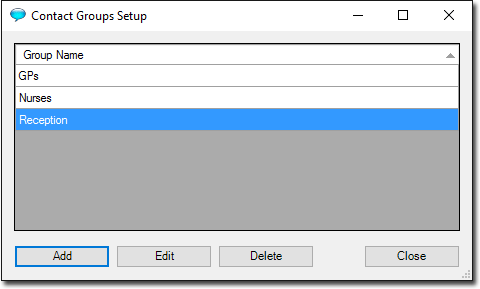
Creating Contact Groups
Create contact groups so that messages can be sent to multiple recipients in Messenger.
Before you begin
Messenger is a text-based utility that allows you to communicate instantly with other users on your network. Typically messages are designed to be sent to a single recipient. However, you can also send messages to multiple recipients, simultaneously. This is achieved by first creating a group of recipients, and adding members to that group. Later, you can address new messages to the group.
Procedure
-
Locate and double-click
 MedicalDirector Maintenance on your desktop.
-
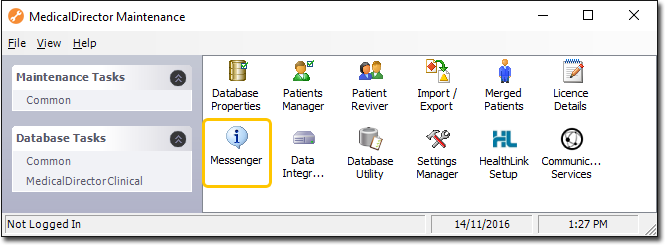
In the MedicalDirector Maintenance window, select the .
-
Double-click
 Messenger. (Optional) If this is the first time
you have tried to access Messenger during this session of working in MedicalDirector
Maintenance, you will be prompted to select a Configuration, and enter your Username and Password.
Messenger. (Optional) If this is the first time
you have tried to access Messenger during this session of working in MedicalDirector
Maintenance, you will be prompted to select a Configuration, and enter your Username and Password.
-
The Messenger activates.
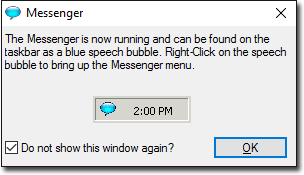
- To prevent the display of the Messenger window again, enable the Do not show this window again? check box.
- When not in use Messenger can be reactivated by double-clicking

in your Windows Taskbar.
-
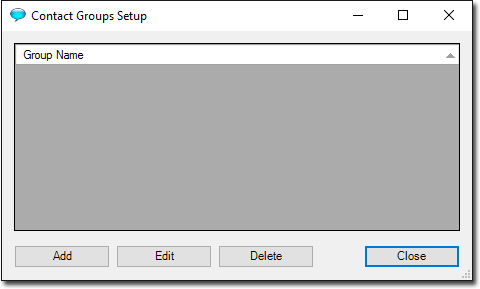
In the Contact Groups Setup window, to create a new group,
click Add.
The first time you access this window, it will not contain any recipient groups, as indicated in the following image.
-
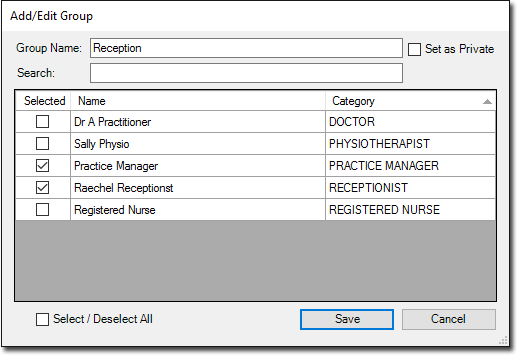
In the Add/Edit Group window, enter a name for the
group.
Results