
Adding Users
Add non-clinical members to Clinical.
Before you begin
Important:
If you want to create a new Practitioner or Nurse Practitioner record, and
you run MedicalDirector Pracsoft in conjunction with Clinical, you must create the
practitioner record in Pracsoft first, ensuring you give the new Practitioner record a
User ID. In this way, when you then log into Clinical, the practitioner record will be
available for you. The only exception to this rule is for Allied Health. In this
instance, they need to be added to Clinical first, as a user not a practitioner.
Procedure
-
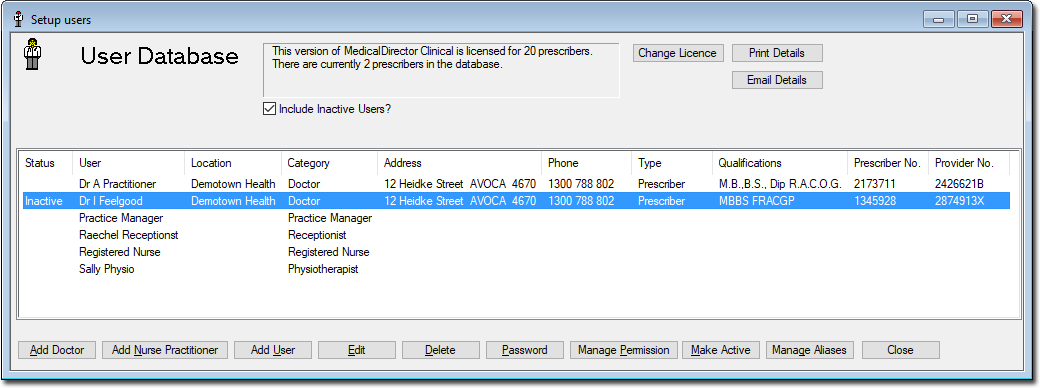
Select from the Clinical main screen to open the User Database.
-
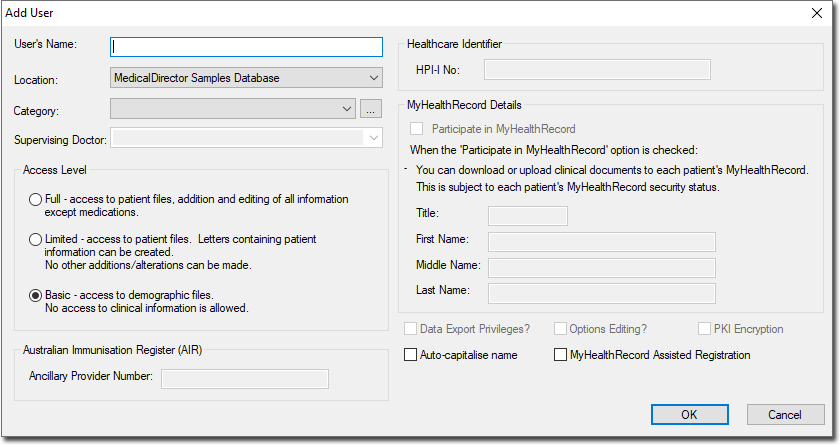
In the Add User window, enter the name of the user - this
would normally be the user's given name then family name.
-
Select one of the options from the Category list. Common
categories are listed, and you can manage user-defined categories via the
 Ellipsis button.
The Practice Manager category has been added to the MedicalDirector Clinical User Database because of their position and range of duties within a practice. This enables them to:
Ellipsis button.
The Practice Manager category has been added to the MedicalDirector Clinical User Database because of their position and range of duties within a practice. This enables them to:- Add and remove practitioners and users and setup passwords.
- Modify practitioners and user demographics and access levels, and change passwords.
- Change Licence codes to increase or reduce the number of licensed practitioners.
Tip:If you select 'Medical Student', you can also indicate their supervising practitioners. -
Enter a new password in the fields provided.
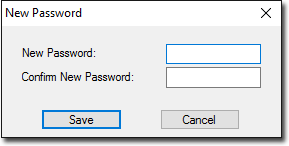
Multiple users can share the same user name. For further information about passwords, see Setting and Changing Your Password.