Upgrade your existing Clinical software to the latest release.
Procedure
-
Go to the MedicalDirector website and to the Updates page.
-
Locate the Ready to Upgrade section.
-
Select the link for the version your practice is currently running.
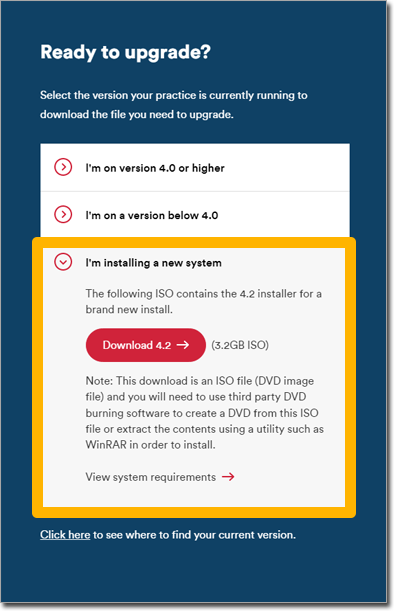
-
Download the ISO to an appropriate location.
-
Browse to and double-click Setup.exe.
-
For terminal server users:
- If the Installation Wizard window is open, click
Cancel to close it.
- In the Session Manager, remove any active or disconnected sessions.
- Advise all users not to log in to the terminal server until the installation
is complete. If any users log in during installation, the installation might
fail or they might not be able to use the software successfully.
Tip: Temporarily block all user access.
- The server must be in Install Mode during installation. To do this, in
Add/Remove Programs, click Add New
Programs, then browse to and double-click
Setup.exe. A window displays a message that it should
not be closed until the installation is complete.
-
In the Installation Wizard Prerequisites window, click .
-
A list of installation tasks is displayed. Click each link, read the information,
and perform the tasks as necessary.
-
Set .
-
The Installation Wizard displays a list of any prerequisite software that needs to
be installed.
- If additional third-party software is needed, click
Next. The listed software is installed. You might
need to restart your computer, then the Installation Wizard will resume.
If
you are installing a terminal server, the computer has restarted, and the
Installation Wizard resumed, click Cancel to close
the Installation Wizard. Launch the Installation Wizard through
Add/Remove Programs again to ensure the terminal
server is in install mode.
-
A message is displayed that states whether the required third-party software was
installed successfully.
- If any were unsuccessful, contact your Systems Support for assistance.
- If all were successful, click Next.
-
A message is displayed asking you to confirm that you have:
- Closed all Clinical, Pracsoft,
and Appointment Book applications.
- If you are using Mobility,
uploaded all patient data to the server.
- Performed a full Backup with the Backup Utilities.
- Disabled antivirus software.
- Disabled Windows automatic updates.
Set I have performed the required preparation steps and wish to
continue.
-
Click Next.
-
Review the summary of the proposed installation. Click
Begin.
-
When the installation is complete, click Finish.
What to do next
- Upgrade all workstation computers running Clinical and/or
Pracsoft.
- On each upgraded computer where Clinical is
installed, open Clinical. Ensure you can view and save letters and documents.
- On each upgraded computer where Pracsoft is
installed, open Pracsoft. Ensure you can perform an OPV and your daysheets reflect the last
working day's billing.
