
Progress Notes
Record notes about a patient's visit in Progress Notes.
- All entries from these screens are internally coded, allowing for easy searching to find patients meeting specific requirements or presentations.
- All clinical notes are stored in an encrypted form on the practice server hard disk drive, thereby preventing unauthorised back door access.
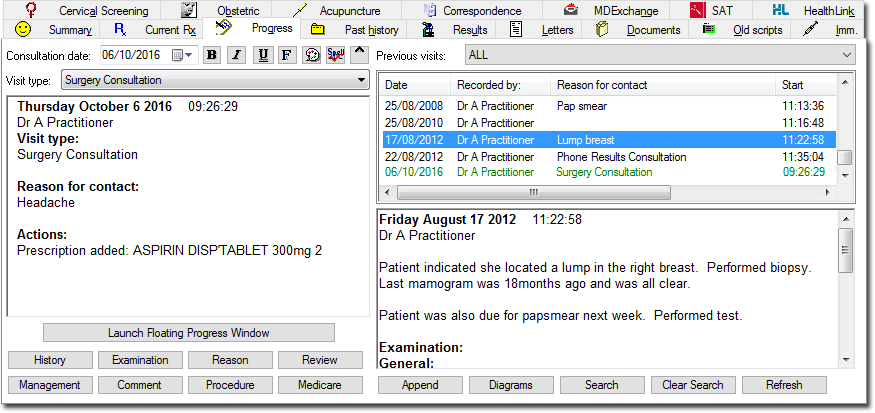
- The left-hand panel is where notes are recorded. Text can be typed directly in this
area, and can be formatted by altering font, colour and appearance (bold, italics and
underline) if required.
- Many notes are recorded here automatically by Clinical as you use its various tools, and notes are automatically saved when you leave a patient's record (provided this option is enabled).
- This area can be viewed as a mini, floating window that can be relocated and resized. This is also available via tab.
- The right-hand (split) panel displays a history of Progress
notes.
- The upper-half lists past Progress notes in order of visit, with the lower-half showing the detail of any selected past Progress note.
- This list also displays the current Progress note (the note you are actively working on), highlighted in green.
- When you open the patient's record, the latest recorded note is selected by default.
- During a consultation it is possible that newer notes display in this list periodically, placed after the note you are currently working on. This is because it is possible for multiple users to work on the same patient's record simultaneously, which means another user may save a note whilst you are still working on yours.
Each user can write a unique Progress note. You can modify your last note (created today) up until midnight. In restricted mode, most features on the Progress tab are disabled. However you can write notes, and access Comments and Management. You can resume your previous note (created today), provided you don't already have it open on another computer. Use shortcut keys to quickly add notes.
| Shortcut key | Function |
|---|---|
| S: | |
| O: | Objective |
| A: | Assessment |
| P: | Plan |
| Hx | History |
| OE | Examination |
| Dx | Reason for contact |
| Mx | Management |
Progress notes are automatically saved at the end of the visit. If no notes have been recorded and no actions performed whilst in the patient's Progress notes, you will be prompted as to whether to save a record of their visit. When closing a patient's record, notes of the elapsed time are displayed, as well as the start and finish times are recorded in the database.
| Field | Description |
|---|---|
| Consultation date | Allows you to select the date of consultation before you enter any notes. For example, you saw a patient last week, but forgot to enter any notes for that visit; by selecting the day on which their consultation took place, you can record notes for that day with the assurance that when saved, the notes will be listed correctly in order of visit date, not recording date. |
| Previous Visits | Filters the previous visits according to Reason for contact. |
| Visit type | From the Visit Type list you can indicate the type
of visit for the day's consultation. The default visit type for practitioners
is Surgery Consultation and the default for all other
users is Practice Admin. You can add customised entries via the Lists tab of Clinical Options. You can set the default via the Progress Notes tab of Clinical Options. Your selected visit type for each consultation is also displayed in the past progress notes. 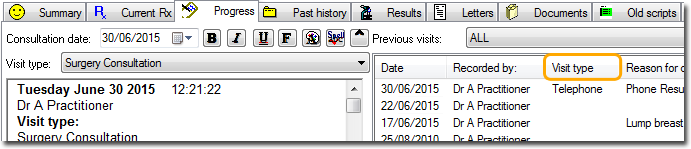 When you close the patient's record, confirm the visit type you have selected. 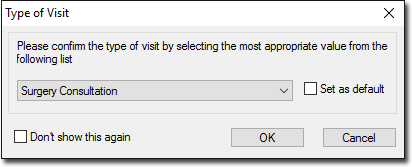 Both the drop-down list on the Progress tab and the associated prompt can be disabled via Progress Notes options. |
| Current Visit Box | This large text box to the left of the Progress window
is where Progress notes for the current visit are recorded
and displayed. Whilst it is possible to type text directly into this box, other notes are added automatically as a result of using the various components of Clinical. For example, printing a prescription generates an entry. Also the current date, time and practitioner name is entered by default for new notes. |
| Launch Floating Progress Window | Launches a mini, floating version of the Progress
notes window that can be relocated and resized. This is also available via tab.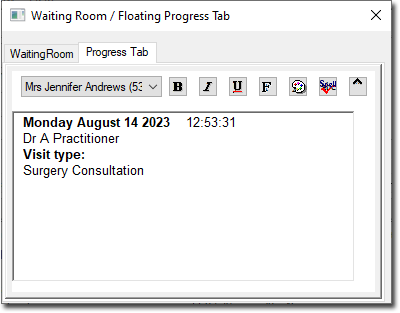 |
| History | Display a series of tabbed pages to allow entry of an historical review. Each major system has its own page containing buttons and lists to enable the entry of symptoms without having to type. |
| Examination | Record examination findings using a combination of Yes/No controls, Check boxes, spin boxes, and Pick lists. Some areas enable you to draw on diagrams of sections of the body. |
| Reason | Enter a reason for the patient's visit or contact. |
| Review | Review a date or interval to be recorded in the notes. |
| Management | Add Management text. Management items are frequently used text that inserted using a shortcut key combination. |
| Comment | Enable user-defined blocks of text to be inserted at the current cursor position. A number of text blocks can be stored for each practitioner. |
| Procedure | Enter the details of any procedure performed on the patient into a Procedure section of the notes. It uses part of the DOCLE coded list that is also used elsewhere in Clinical. |
| Medicare | Associate a Medicare item number with a visit. |
| Append | Add any notes to the patients previous visits. |
| Diagrams | View any diagrams recorded during previous visits for the patient. Diagrams are entered through the Examination window. The Diagrams button is disabled if no diagrams have been recorded. |
| Search | Search the patient's previous progress notes for specified text entries. |
| Clear Search | Clear the search criteria. |
| Refresh | Refreshes the list of previous visits. If multiple users have the same patient's record open simultaneously, clicking this button will refresh your list to display any past notes saved by other users during this session. |