
Configuring the Content Update Server Utility
Configure workstations to automatically install updated MDref content.
Before you begin
- Automatic Update must be running on the server computer.
- A user must be logged into your server computer because Automatic Update requires a desktop environment in which to run.
About this task
- Check whether MDref updates are available for the workstations on your network.
- Specify whether workstation computers can download MDref package content as required from the server.
- Specify whether workstation computers can process MDref package content in the background.
Procedure
-
Double-click the MedicalDirector Maintenance icon
 .
.
-
Double-click the Content Update icon.
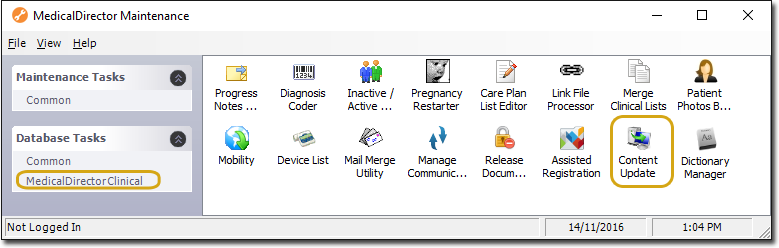
If this is the first time you have run the Content Update Utility during this session of working in MedicalDirector Maintenance, select a configuration and enter your username and password. -
The Content Update Server Utility window lists computers on
your network, with an icon that indicates whether Clinical updates are
available for that computer:
- A red
 icon indicates that no update is available.
 - A green
 icon indicates that an update is available.
Tip:The list of computers in the Content Update Sever Utility window includes all current and obsolete computers that have ever accessed Clinical. - A red
Results
- Logs in to Clinical.
- Opens a patient's record.
- Accesses Product Information, Consumer Medicines Information, or NPS.
- Accesses the Pathology, Cytology, or X-ray Request modules.