
Add Item Numbers to a Patient's Progress Notes

A practitioner can add Medicare item numbers to a patient's progress notes during a consultation if required.

Procedure

To add item numbers to a progress note:
  1. In the patient's clinical record, select the Progress tab.
  2. Click Medicare.
  3. In the Medicare Benefits Schedule window, locate the item number you want to add.
    • Enter the item number in the Go to Item No field.
    • Scroll through the list of items.
    • Enter a keyword into the field at the upper-right of the window and click Text search. Click this button again to display the next item containing the search text. To display the description of an item, select it.
  4. Double-click the item, or select it and click Add Item No to visit.
    Restriction:
    The item numbers added during one visit can have a maximum total of 50 characters.
  5. Click Save.

Results

After an item has been added to the patient's progress notes, you can also enter comments and the type of billing to be applied to the item, for example, Bulk Bill in the example below.
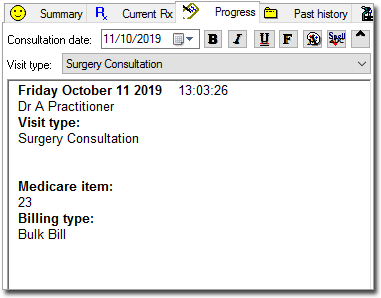
Progress tab showing a Medicare item with the billing type Bulk Bill

If integrated with Pracsoft, this information will be transferred to the Billing Type column of the Pracsoft Waiting Room, the Pracsoft Consultation Viewer, or a third-party billing package using Clinical's VISITS.OUT file.

Notes or comments entered here are also saved to the VISITS.OUT file.