Advanced Tab

Select options for communicating with your practice's email client.

The following table shows options for communicating with your email client. Consult your systems administrator for guidance with selecting the best option for your practice. To configure an email client type, in the Preferences window, select the Advanced tab.
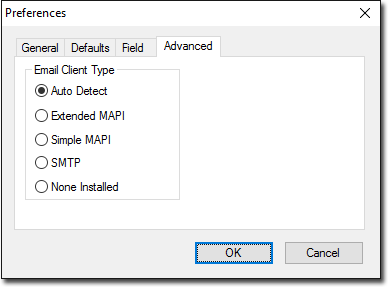
Advanced tab
Table 1. Types of email client
Email Client Type Description
Auto Detect Clinical automatically detects the Windows default email client.
Extended MAPI Is included with Microsoft Windows as part of Outlook Express (now discontinued). This client type was available from Windows 98 to Windows Server 2003, and was available for Windows 3.x, Windows NT 3.51 and Windows 95.
Simple MAPI Is included with Office Outlook and Exchange.
SMTP Sends an outgoing email via an SMTP.
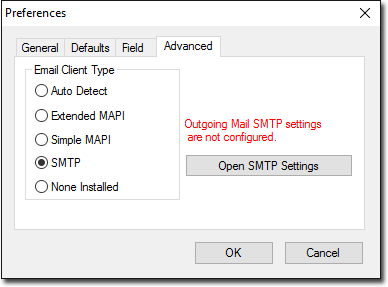
Open SMTP settings option - example
Note:
Each user should have a separate email address. Obtain SMTP account and email server details from your internet service provider or network administrator.
To configure the SMTP email client type:
  1. Select SMTP > Open SMTP Settings. One of the following statuses is displayed on the right side:
    • Red - outgoing mail SMTP settings are not configured.
    • Green - outgoing mail SMTP settings are configured.
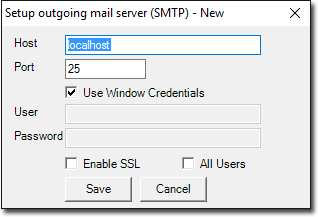
  2. In the Setup outgoing mail server (SMTP) - New window, provide these details:
    Setup SMTP window
    1. In the Host field, enter the name of ISP's mail server. For example, mail.youisp.com.
    2. In the Port field, enter the outgoing server port.
    3. Choose one of the following methods for authentication:
      • To use Windows credentials, set Use Windows Credentials.
        Note:
        If this option is enabled:
        • Your credentials are saved in the database and the password is encrypted.
        • User and Password fields are inactive in the Setup outgoing mail server (SMTP) - New panel.
      • To use credentials provided by ISP, in the User and Password fields, enter the credentials provided by your ISP. For example, yourname@yourisp.com.
    4. If required, set the following options:
      • To enable a secure connection, set Enable SSL.
      • To use the currently signed-in user's credentials for all users, set All Users. Otherwise, each user must enter their own credentials.
    5. Click Save.
None Installed No email client type is installed to configure with Clinical. You cannot use email in the Letter Writer until the required email client type is installed.