Defines the layout and alignment of medical imaging request forms for each medical
imaging provider in the address book.
About this task
Use the Imaging tab in the
Print Options window to adjust the print settings for the Medical Imaging Requests forms.
Procedure
To set up print options for imaging request forms:
-
From the MedicalDirector Clinical Homepage, select .
-
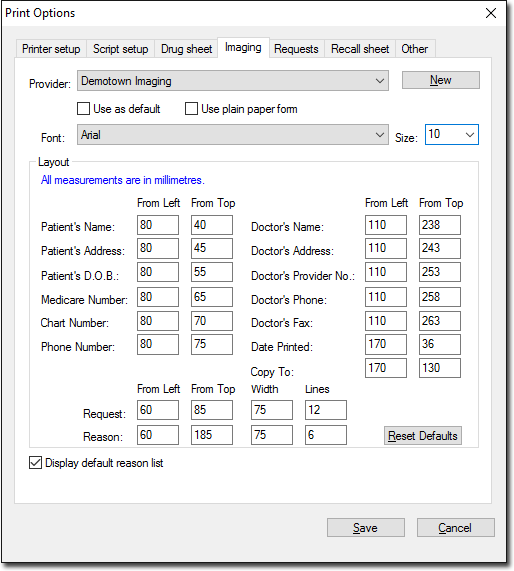
In the Print Options window, select the
Imaging tab.
-
From the Provider list, select the laboratory for which you
want to edit imaging request forms:
- If the medical imaging provider already exists in the Address Book, their name is displayed in the
Provider list.
- If the provider's name does not exist, click New to add
them to the Clinical
Address Book. When adding a new provider, you must select
the Radiology category.
-
Edit the required settings as appropriate. For more information about other fields,
refer to Imaging Print Options table.
-
Click Save.
Results
Print settings for the imaging sheet are saved and will be
applied to all future printouts.