
Settings Manager
The Settings Manager allows you to copy a variety of settings for Pracsoft between Users and/or Computers.
Before you begin
You can also modify Pracsoft workstation settings that previously had to be modified manually in the Pracsoft.ini file. Furthermore you can import workstation settings from a Pracsoft.ini file (see Step 11 below).
To access the Settings Manager:
Procedure
-
Locate and double-click
 MedicalDirector Maintenance on your desktop.
-
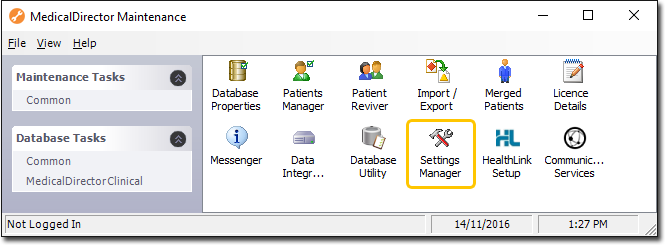
In the MedicalDirector Maintenance window, select .
-
Double-click
 Settings Manager.
If this is the first time you have tried to access the Settings Manager during this session of working in MedicalDirector Maintenance, you will be prompted to select a Configuration, and enter your Username and Password.
Settings Manager.
If this is the first time you have tried to access the Settings Manager during this session of working in MedicalDirector Maintenance, you will be prompted to select a Configuration, and enter your Username and Password. -
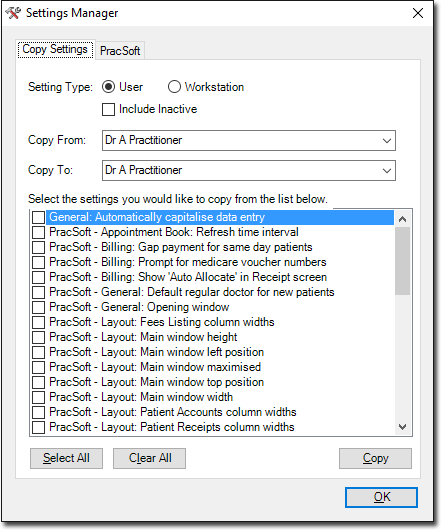
In the Settings Manager window, select a Setting
Type option to define whether you want to copy User-specific or
Workstation-specific settings. Note that the list of available settings towards the
bottom of this window will change dependant on your selection.
-
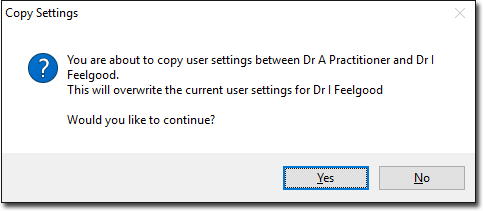
When you are satisfied with your selection, click Copy and
confirm your action.
-
(Optional) Select tab.
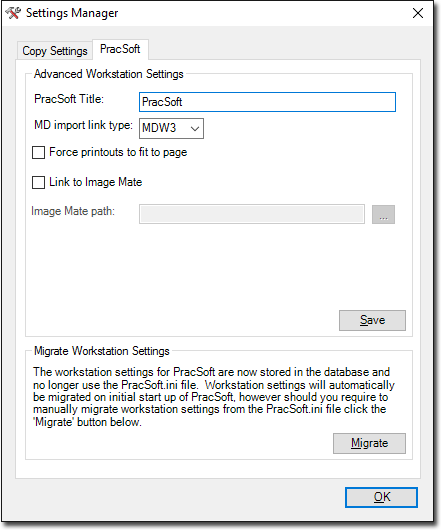
- In the Advanced Workstation Settings section, modify Pracsoft workstation settings that previously had to be modified manually in the Pracsoft.ini file.
- In the Migrate Workstation Settings section, import
workstation settings from a Pracsoft.ini file: click
Migrate and select a
Pracsoft.ini file to import.Note:Existing workstation settings will be overwritten.