
Logging in for the First Time
When you log in for the first time, you must select the database you want to use and provide details for at least one practitioner.
Before you begin
Note:
If you are using Clinical with Pracsoft, add a user to Pracsoft first. They will then be
available to Clinical when next opening it. Then, when first logging into Clinical, you will be prompted if
additional information is required.
About this task
Procedure
To log in to Clinical
for the first time:
-
Double-click the
 Clinical icon on your desktop.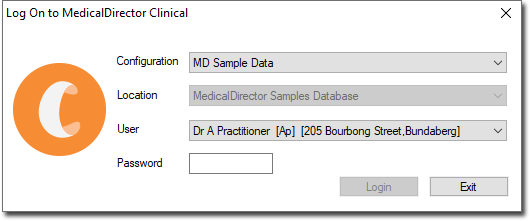
-
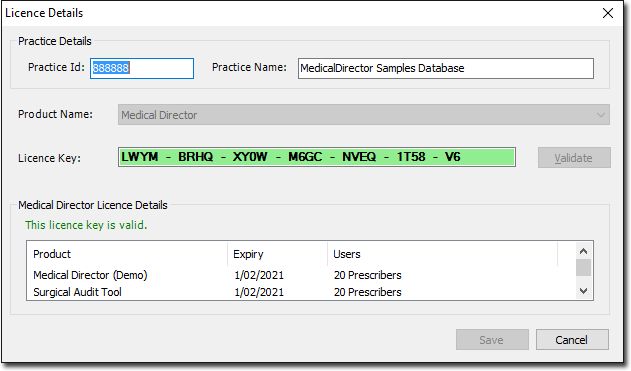
When the Licence Details panel is displayed, in the
Licence Details window, enter the Practice
Details and License Key exactly as supplied to
you by MedicalDirector.
Use your own (live) patient database. As this is the first time you have attempted to run and log in to MedicalDirector Clinical.
-
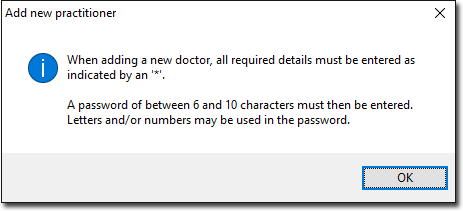
To add a new practitioner, in the Add new practitioner window,
click OK.
-
In the Add Doctor window, record the user details.
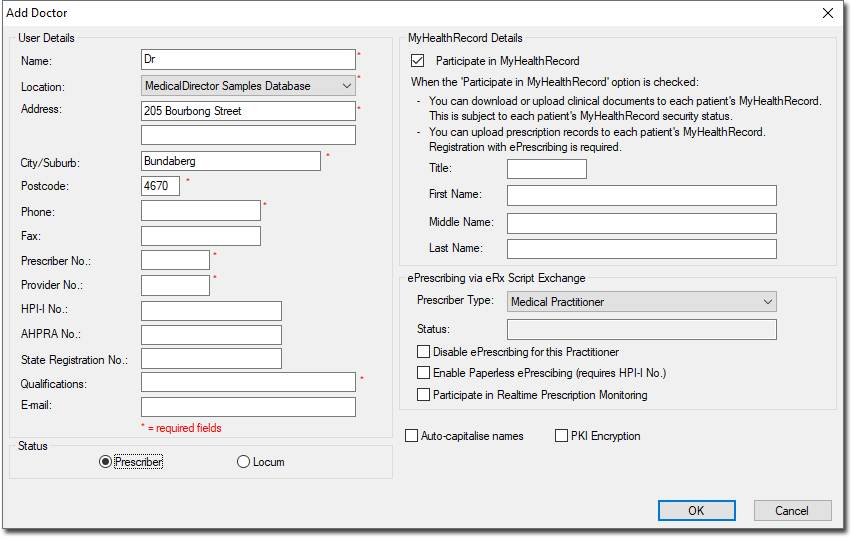
The fields marked with a red*Asterisk must be completed; the recording of a doctor's or nurse's Name, Address, Prescriber No., Provider No. and Qualifications (legal requirement), as these details display on prescriptions. The Provider No. is used on Pathology or Radiology forms and added to referral letters:- For more information on the HPI-I No., refer to Healthcare Identifiers Service.
- The AHPRA No. and State Registration No. fields are optional. For more information, contact the Department of Health and Ageing in your state.
Results
What to do next
- To configure your printer on your computer on which you run Clinical, select tab. For more information, refer to Printer Setup.
- In the tab, enter the practice's details, including your HPI-O number. For more information, refer to Practice's details.
- Link Clinical to third-party
billing packages. For more information, refer to Links Options.
If you run Pracsoft in conjunction with Clinical it is not necessary to configure linking, as both applications share the same patient database. However if you run a third-party billing package, you can synchronise patient data (added/edited via the billing package) with Clinical.
- Practice Incentives Program (PIP) eHealth Incentive:
- Requirement 1: Integrating Healthcare Identifiers into Electronic Practice Records
- Requirement 2: Secure Messaging Capability (SMD)
- Requirement 3: Data Records and Clinical Coding
- Requirement 4: Electronic Transfer of Prescriptions
- Requirement 5: Personally Controlled Electronic Health (eHealth) Record System PCEHR, and Creating and Managing CDA Documents for PCEHR
- Configure Clinical for email correspondence. For more information, refer to Email and Configuring Email.