Sets the required columns to be displayed on the printed Recall
sheet.
About this task
Use the Recall Sheet tab in the
Print Options window to set the columns that are displayed on the
printed Recall sheet.
Procedure
To set up print options for the recall sheet:
-
From the MedicalDirector Clinical Homepage, select .
-
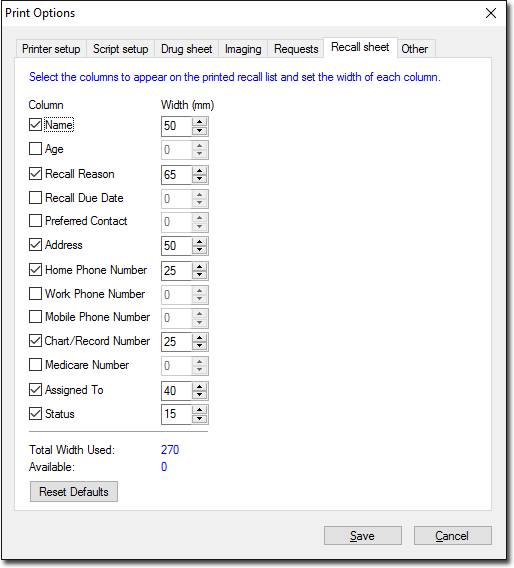
In the Print Options window, select the Recall
Sheet tab.
-
Select the columns you want to print on the recall sheet and adjust the width for
each column.
Initially, the columns selected in the list are the same as those used in earlier
versions of
Clinical. If you
want to add new columns to the printed
Recall sheet, you may
need to adjust or remove columns to fit within the 270 mm A4 landscape page
width.
Tip:
- Measurements are in millimeters (mm).
- The total width used and the available width are displayed in the
Total Width Used and
Available fields, respectively.
- To restore the default settings, click Reset
Defaults.
-
Click Save.
Results
Print settings for the recall sheet are saved and will be
applied to all future printouts.
