
Importing Address Book Data
Import address book data in the required file format.
About this task
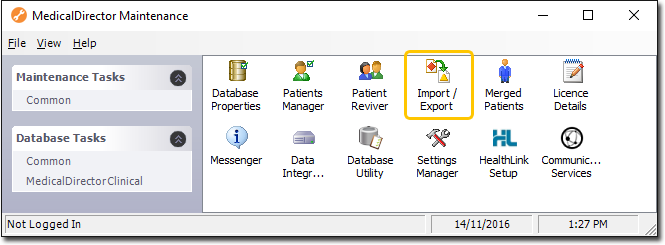
 MedicalDirector Maintenance window.
Procedure
To import patient data:
-
Locate and double-click MedicalDirector Maintenance on your
desktop.
-
In the MedicalDirector Maintenance, select the menu item.
-
Double-click
 Import/Export. (Optional) If
this is the first time you have tried to access
Import/Export during this session of working
in MedicalDirector Maintenance, select
Import/Export. (Optional) If
this is the first time you have tried to access
Import/Export during this session of working
in MedicalDirector Maintenance, select
 Configuration and enter your
Username and Password.
For more information, refer to Configuration.
Configuration and enter your
Username and Password.
For more information, refer to Configuration.
-
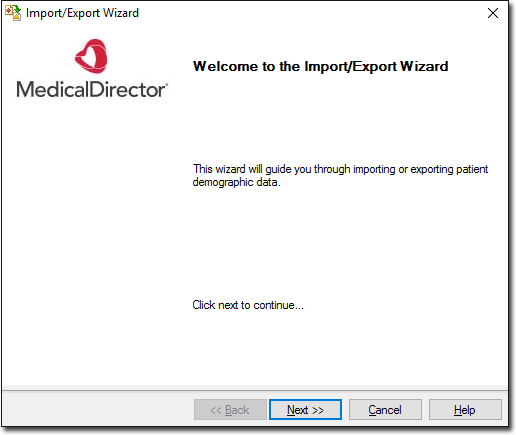
The
Import/Export Wizard displays. In the
Import/Export Wizard, click
Next to continue.
-
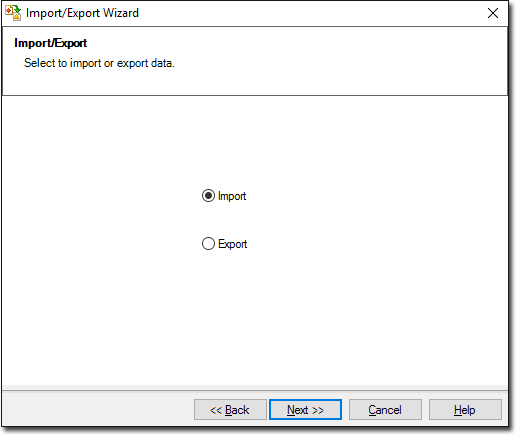
In the
Import/Export window, select .
-
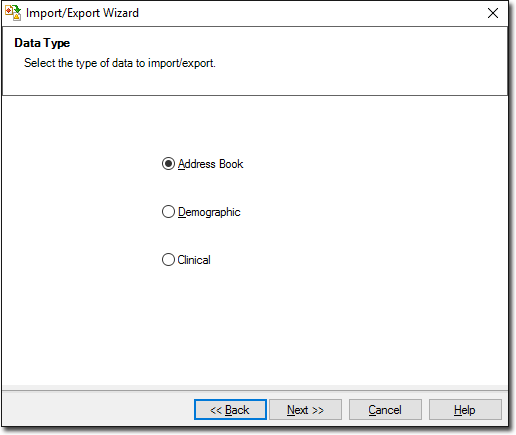
In the Data Type window, select .
-
In the Format window, select the file format of the file you
want to import and click Next to continue.
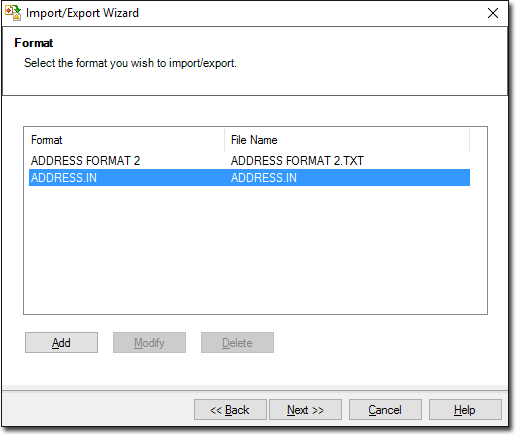
If required:- To add a new file format before importing the associated file, click Add.
- To edit an existing file format, select it from the list and click Modify. Some file formats cannot be modified.
-
In the Import File window, to import a file:
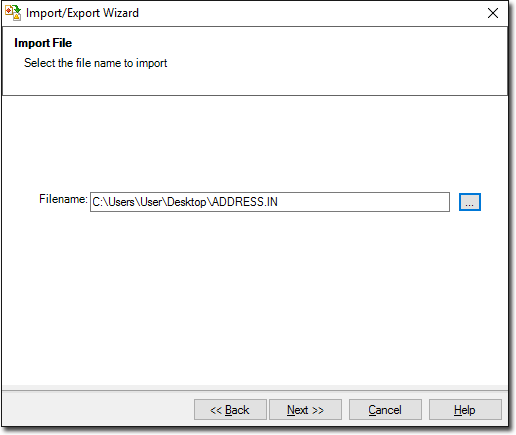
- In the Filename field, click the
 Browse icon.
 - From your local drive, select the file you want to import.
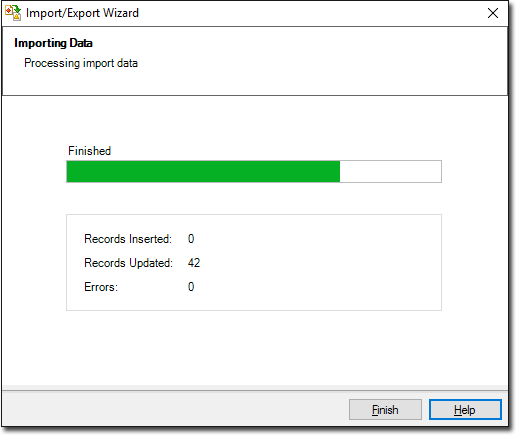
- Click Next to continue. The import data
processing begins. You will be notified when it completes.
- In the Filename field, click the