Record the acupuncture points for a patient, including the reason
for treatment and its severity level.
About this task
Create a new acupuncture record for a
patient in the New Acupuncture record
window.
Procedure
To create a new acupuncture record:
-
In the patient's
record, select the Acupuncture
tab.
-
To access the New Acupuncture record
window, perform any of the following options:
- Click
 Add
Add
- Right-click and select New Item
from the pop-up menu.
- Press F3.
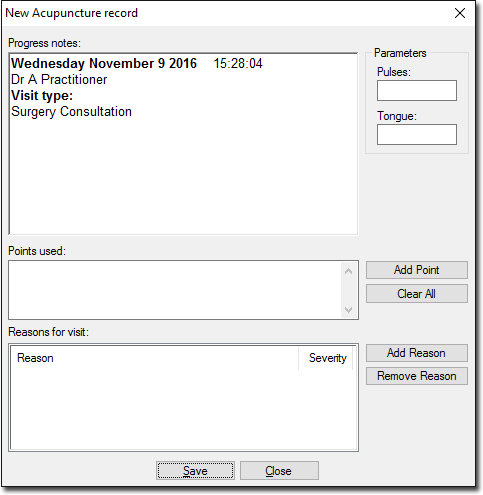
The
New Acupuncture Record window is
displayed.
-
To add an acupuncture point, click Add
Point.
-
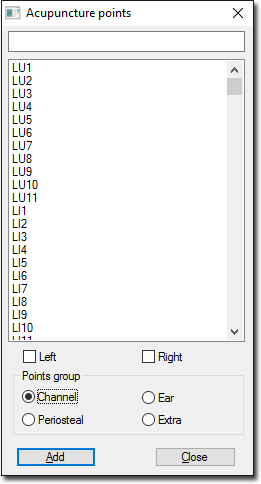
In the field, set the required point group. The
associated acupuncture points are displayed in the table.
-
From the points table, either:
- Select the point and click Add
or
- To filter the points:
- In the text field, type the point at the top. A list
of points beginning with the letters entered are
displayed.
- Select the point and click
Add.
-
After you have finished adding acupuncture points, click
Close. You are returned to the
New Acupuncture record window and the
points are added to the Points Used
section.
-
To add a reason for the acupuncture treatment, click
Add Reason.
-
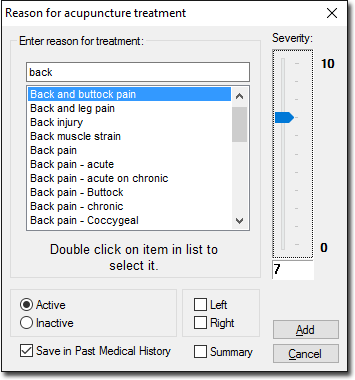
In the Reason for acupuncture treatment
panel, enter a reason for the acupuncture treatment. As you type,
the reason list is filtered.
-
From the list, double-click on the required reason to select
it.
-
Set the required condition (Active or
Inactive) and affected side
(Left or Right)
for the points.
-
To select the severity of pain, adjust the
Severity slider. The severity value is
displayed at the bottom of the slider based on the
adjustment.
-
If required, to save the acupuncture details on the Past History, set
Save in Past Medical History.
-
If required, to add the acupuncture details to the Summary, set
Summary.
-
Click Add.
Results
A new acupuncture record is created and
added to the New Acupuncture record
window.
